Working with tables
Every file you import becomes a table in the case, and the grid is where you read it. This page covers finding and organising tables, arranging columns, sorting, reading a row in full, selecting and copying rows, grouping, merging tables of the same shape, and saving the rows that matter as a table of their own. The imported data itself is never changed by any of it: hiding, reordering or sorting changes only how the table is shown.
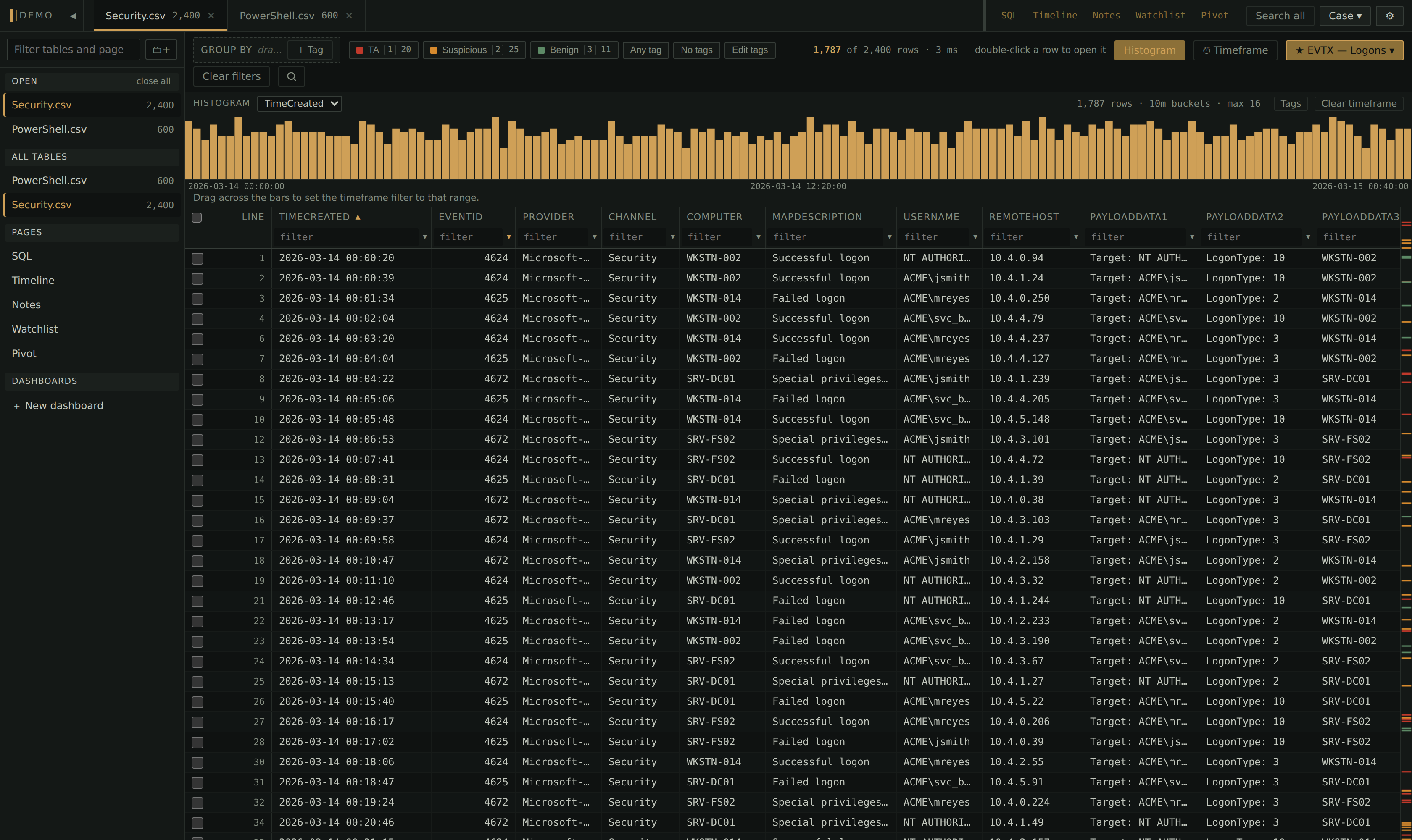
Tabs and the tables sidebar
Each open table has a tab showing its name and row count. Click a tab to switch to it, drag tabs to reorder them, and right-click one for its menu (see Right-clicking a table). The ✕ on a tab closes it, but the table stays in the case and can be reopened at any time. Switching tabs keeps each table's filters, search, sort, grouping and scroll position as you left them.
The sidebar lists every table in the case. It starts hidden: click ▶ at the left of the tab strip, or press `, to show it. Drag its right edge to make it wider or narrower, and double-click the edge to reset it. The Filter tables and pages… box at the top narrows the list as you type.
The sidebar has these sections:
- Open lists the tables that have tabs, in tab order. Reorder them with ▲/▼ or by dragging, close one with ✕, or close them all with close all. Drag a table from further down onto this section to open it.
- All tables lists every table, in folders if you use them. open all opens every closed table (it asks first when there are more than 12), and tagged opens the closed tables that have tagged rows.
- Pages (SQL, Timeline, Notes, Watchlist) and Dashboards follow; see SQL pane, Timeline, Search all and the Watchlist, Tagging and notes and Dashboards.
Hover over a table to see its nickname, the file it came from and when it was imported. Right-click it for the same menu as its tab. A ⛓ before a name marks a merge, and ⊂ marks a table saved from another table's rows.
Right-clicking a table
Right-click a table's tab, or the table in the sidebar, for a short menu of what you can do to it:
- Close this tab closes the tab, the same as its ✕. Only shown when the table is open.
- Nickname this table… gives it a display name (see Renaming a table). On a merge it reads Rename this merge….
- Columns… opens the table menu (see The table menu), opening the table first if it was closed. On the table you are looking at it shows its key,
C. - Merge with other tables… starts the merge builder with this table ticked. On a merge it reads Edit merge… (see Merging tables).
- Remove… deletes the table from the case after asking, the same as Remove… in the Tables manager. It is greyed out on a table that is part of a merge, and names the merge.
With a tab or a sidebar row focused, the keyboard's menu key or Shift+F10 opens the same menu under it. ↓ moves into it, the arrow keys move through it and Enter picks.
Folders
Folders are labels for keeping a large case tidy. Click 🗀+ at the top of the sidebar to create one, or + on a folder to create a folder inside it. To put a table in a folder, drag it onto the folder, or click the 🗀 on its row and choose the folder (or + New folder…). ↥ Remove from folder in the same menu, or dragging the table onto drop here to remove from folder, takes it back out.
Click a folder's name to collapse or expand it, and double-click it to rename it. ▲/▼ reorder folders. ✕ deletes a folder: its tables and subfolders move up a level, and no table is deleted.
Renaming a table
A table is named after its file. To give it a clearer name, right-click its tab or its row in the sidebar and choose Nickname this table… (it is also the Nickname box in the table menu's Name & merge section), or use the table's ⋯ in the Tables manager. The nickname is shown in place of the file name everywhere. Leave it empty to go back to the file name. A merge has no file name, so the same command reads Rename this merge….
The Tables manager
Press t, or choose Case ▾ → Tables…, to see every table in the case, open or closed. It is laid out like the table menu: its sections are listed down the left, each with a line saying what is in it, and the one you pick fills the right. Along the bottom are Import… and Copy table definitions, which copies every table's columns as SQL, for help writing a query in the SQL pane.
Every table lists the tables with their row count and the number of tagged rows and notes; a dash means none. Type in Filter tables… to narrow the list, and click a column heading to sort by it. Folders groups the tables the way the sidebar files them, and Kinds groups them by their set of columns, so every host's EvtxECmd output is together. A kind held by more than one table has a Merge… button, which opens the merge builder with those tables ticked.
The tick on each row is whether the table is open as a tab: tick it to open the table without leaving the manager, untick it to close the tab. Closing a table, here or with the ✕ on its tab, only hides it; it stays in the case. Click a table's name to go to it. The ⋯ at the end of each row is the table's right-click menu (see Right-clicking a table). Under the list, Open all tagged opens every closed table with tagged rows, and Close all tabs closes every tab.
Remove… deletes the table from the case, along with its tags and notes. It asks first. A table that is part of a merge can't be removed until the merge is deleted. Deleting a merge leaves its tables untouched.
Merges & saved tables lists the tables made from other tables: each merge with the tables in it and their row counts, each table saved from a view with the table it came from and how many of its rows, and each table saved from the SQL pane with its query. Merge tables… starts a new merge.
Indexes shows both kinds of index a case builds on its own. A table's search index says index ready, indexing… or not indexed. Until it is ready, Contains and Advanced searches on that table scan every row instead: the results are the same, only slower (see The search index and slow searches). Build starts a table's search index now, in the background, rather than on the first search that needs it, and Build N missing search indexes does it for every table without one. If Winnow is running on a Python whose SQLite is older than 3.45, there is no search index, and the pane says so.
Filtering, grouping or opening the value picker on a column builds a small filter index for that column in the background, and sorting by a column builds a sort index for it. Two are built as part of the import instead, so they are ready before the first click: a sort index on the table's first date and time column, which is usually the first thing a timeline is sorted by, and, for an EvtxECmd event log, a filter index on EventId, because the KAPE dashboard and lateral movement filter on it in nearly every query. Each adds a few seconds to the import of a large log and saves more than that the first time it is used. They are listed beside each table, and ✕ drops one if they take up too much space; Drop all filter indexes drops every one, after asking. Dropping one costs nothing but a slower first filter on that column next time.
The table menu
Press C to open the table menu, or right-click a tab or a table in the sidebar and choose Columns…. Its sections are listed down the left, each with a line saying what is set in it, and the one you pick fills the right. Up and Down move between them. Along the bottom, under every section, are Tables manager…, Reset view (clears filters, search, tag filter and grouping and restores the default sort; the column layout and the timeframe stay) and Close this tab.
- Show, hide & order: show, hide, pin and reorder columns (see below), plus Add derived column… (see Derived columns).
- Value dropdowns: when the ▾ value picker appears on this table's filter boxes, for the table and for each column (see Filtering and searching).
- Layout: put the default layout for these columns, or another table's layout, on this table, and save this table's layout as the default (see Layouts).
- Name & merge: how many rows, columns, tagged rows and notes the table has, where it was imported from, its nickname, the name of its set of columns, and its merges. The two names are saved when you press Enter or leave the box; Escape takes back what you typed. Merge with other tables… (on a merge, Edit merge…; see Merging tables) sits beside the tables that share columns with this one, best fit first.
In a narrow window the sections go across the top instead.
Columns
Showing and hiding columns
In the table menu's Columns list, untick a column to hide it and tick it to show it again. Filter columns… finds a column by name in a wide table. Show all brings every hidden column back. Hide empty columns hides every column that has no value in the first 2,000 rows of the current view, so a column whose values only appear further down can be hidden by it.
Hide empty rows is a toggle in the same place. It drops rows in which every column is empty, such as blank lines in a raw text import. It counts as a filter: the row count follows it, and it is remembered for the table.
Each column's type (text, number or datetime) is shown after its name, in a colour of its own so the two don't run together, with "derived" after a derived column. When the menu is too narrow for a long name, the name is shortened with "…" so every row's buttons stay in view; hover the row to see it in full.
Reordering columns
Drag a column header left or right in the grid. In the table menu you can also drag a column's row, or use ⤒ and ⤓ to send it straight to the start or end. Hidden columns can only be moved from the table menu.
Pinning columns
A pinned column stays visible while you scroll sideways. Alt-click a header to pin or unpin it, or click pin beside the column in the table menu. Pinning doesn't move the column: it scrolls with the others until it reaches the left edge (after the gutter and any pinned columns before it) and then stays there.
Column widths
Drag the right edge of a header to resize a column, and double-click the edge to fit the column to its contents. Press = to fit every column, and 0 to reset every width to its default.
Fitting is capped so that a single long value, such as a base64 command line, can't make a column enormous. The cap is set in Settings → Grid & layout → Autofit column width limit (900 pixels by default, or no limit). A column whose header needs more room than the cap still gets room for its name. A table with only one column, such as a log imported one line per row, fills the grid's width.
Timestamp display
Right-click a datetime column's header to choose how its values are shown, for example As stored, YYYY-MM-DD HH:MM:SS or MM/DD/YYYY HH:MM:SS. This is display only: filters and exports always use the text the file came with, although copying from the grid gives the value as displayed. A format picked on a column beats the case's default in Case ▾ → Case settings…, which beats the machine-wide one in Settings → Timestamps.
The same right-click menu has Stack values (rarest first)… (see Filtering and searching), Copy unique values (see Copying) and Derive a column from this….
Layouts
Column order, visibility, widths, pins and timestamp formats are saved with the table in the case file. To reuse an arrangement for every table with the same column names, including in other cases, open the table menu's Layout section and choose Save this layout as the default, or press L. A table with that set of columns and no layout of its own then opens with that arrangement.
A table that already has a layout keeps it, and so does Reset view. To put another arrangement on it, open the Layout section. Take the layout from chooses where it comes from: the default saved for these columns, which it starts on when there is one, or any other table in the case that shares a column with this one (tables with the same columns first, then the rest by how many columns they share). Below it, Columns after applying shows the columns as they would be, with each one that would change marked (shown, hidden, pinned, unpinned, moved or width) and a count. Apply layout puts it on the table, and Undo in the message that follows puts the previous layout back.
From the default, the imported columns take the saved order, visibility, widths, pins and formats, and derived columns keep their own settings and sit beside the columns they came from. From another table, the columns both tables have take that table's order, visibility, widths, pins and formats. A column only this table has keeps its own settings and stays after the column it follows now, so an extra column in a newer export of the same log stays where it was. Applying the default also has a shortcut with no key by default, which you can give one in Settings and shortcuts.
Sorting
Click a header to sort by that column, ascending; click again for descending. Shift-click another header to add it as a second sort key, or to flip its direction. With several sort keys, the ▲/▼ on each header carries its position in the order.
A table opens sorted by its first datetime column, ascending, if it has one. Click Line above the row numbers to go back to the original file order, and click it again for reverse file order.
How a column sorts depends on its type:
- Number columns sort by value. Cells that aren't numbers sort before every number in ascending order.
- Text columns sort alphabetically, ignoring case for A–Z only.
- Datetime columns sort as text. That is chronological for timestamps like
2024-01-05 13:22:01, but not for US-style dates, which sort character by character:1/13/2024comes before1/2/2024. Make a derived datetime column from such a column to get a chronological sort; see Derived columns.
The detail pane
The detail pane shows one row in full. Double-click a row, press d, or click the ⤢ that appears in the row's gutter when you hover over it. The pane follows the cursor as you move through the grid. It is titled with the row's Line number, and it lists every non-empty field.
JSON and XML values are pretty-printed as an indented tree. Right-click a node in the tree for:
| Item | What it does |
|---|---|
| Add as a column | Adds a derived column holding that field from every row (see Derived columns) |
| Filter column to this value | Filters the column to rows whose document contains this value |
| Copy value / Copy path | Copies the value, or the path to the node |
| Flatten this document into columns… | Opens the flatten dialog for the column. Not available on a merge. |
In a list of Name/Value pairs, such as [{"Name": "UserAgent", "Value": "Mozilla/5.0"}, ...], each entry is addressed by its name rather than its position. Right-clicking the name UserAgent acts on the value beside it, and Add as a column adds a column called UserAgent. Derived columns says which lists count as Name/Value pairs.
Values that are nearly JSON are laid out the same way: Python-style lists and dicts ([{'Name': 'UserAgent', 'Value': 'Mozilla/5.0'}]), JSON with a raw line break or an unescaped backslash in a string, and a document inside other text, such as a log line's [INFO] {...}. Each token is shown exactly as the cell writes it. When the whole value is one such document, its nodes have the same menu as a JSON document's. A document inside other text has no menu of its own, because Add as a column needs the whole value to be one document; select text in it instead.
A document nested more than 64 levels deep, or holding more than 5,000 items (values, or elements and attributes), is shown as plain text instead, under Nested more than 64 levels deep, so it is shown as text. or More than 5,000 items, so it is shown as text. Real event data is nowhere near either limit. A value the pane can't lay out for any other reason is shown the same way, under Could not be laid out, so it is shown as text.
Select some text in a field and right-click it to Copy it, filter the column to rows containing it (Filter column to text, or … only to drop every other filter), Exclude it, or Search all columns for it.
These filters, and Filter column to this value, match the text exactly as it is, even when it holds characters the filter box reads as filter syntax, such as the | in whoami | findstr or a leading =, !, ^ or >. Text like that can't go in the box as a plain "contains", so Winnow applies it through the filter builder instead and says so ("applied under Filters ▾").
Hover over a field to show its ⧉ button, which copies that field as displayed (in its chosen timestamp format, for example). Copy row at the top copies the whole row as name: value lines. ⬒ docks the pane to the right or the bottom, and you can drag the divider to resize it. The Note box at the bottom saves as you type; see Tagging and notes.
Selecting rows
Winnow has two kinds of selection. Picked rows are what tagging and saving act on. A cell range is a rectangle of cells for reading and copying.
| Gesture | Effect |
|---|---|
| Click a cell | Moves the cell cursor. Picked rows stay picked. |
| Shift+click a cell, or drag across cells | Selects a cell range |
| Ctrl+click (⌘+click) a cell | Picks or unpicks that row |
| Click anywhere in a row's gutter | Picks or unpicks that row |
| Shift+click in the gutter | Picks every row from the last one clicked |
| Ctrl+Shift+click in the gutter | Unpicks that run of rows |
| Drag in the gutter | Picks the rows dragged over, scrolling at the edges |
Header checkbox, or Ctrl+A |
Picks every row in the view |
| Arrow keys | Move the cell cursor; Shift+Arrow extends a cell range |
Space |
Picks or unpicks the rows the cell range covers, or the cursor row |
Shift+Space |
Picks the rows the cell range covers |
Escape |
Lets go of picked rows and the cell range |
While rows are picked, a bar above the grid says how many, with a button per tag to tag them, Invert, Undo (takes back the last change to the selection) and Clear selection. If a filter hides some picked rows, the bar says how many are "filtered out"; they stay picked, but a tag applies only to the ones shown. With nothing picked, a cell range spanning several rows is what a tag key acts on, and the bar says so. Picking every row is not available while the grid is grouped.
Copying
Ctrl+C copies the cell range if you made one, otherwise the picked rows, otherwise the cursor row. Ctrl+Shift+C does the same with a header line. The copy is tab-separated, uses the visible columns in their current order, and gives values as displayed. Up to 20,000 rows can be copied at once. The cell right-click menu has the same choices under Copy.
Copy unique values copies one column's distinct values, one per line, for pasting into a lookup, a filter or a report. Press Ctrl+Shift+U with the cell cursor in the column, choose it under Copy in the cell right-click menu, or right-click the column header. Which rows it reads:
- A cell range spanning several rows, or the picked rows: the values in those rows, in the order they first appear in the grid. Up to 20,000 rows.
- Nothing narrower than that (one clicked cell, or every row picked): every value in the view, sorted the way the column sorts, so numbers in number order and timestamps in time order.
- From the column header: always the whole view.
The menu item's second line says which, for example "of Host in the whole view". Values are copied as displayed, empty values are left out, and a column with more than 100,000 distinct values in the view is refused rather than copied in part; filter the view down first.
Grouping rows
Grouping collapses a table into one heading per distinct value, with a row count on each, like a pivot you can open. Drag a column header into the Group by strip above the grid. The column leaves the grid while it is grouped. Click a heading to expand or collapse its rows.
- Drag another header into the strip to group within each group. The levels read left to right, separated by ›. Drag them to change their order, and ✕ removes one, putting its column back in the grid where it was.
- While you drag a header or a level over the strip, a dashed placeholder shows where it will land, and the other levels move aside to make room. Let go anywhere in the strip, including just outside its border, and it lands there. A header dropped between two levels is inserted at that point rather than added at the end.
- + Tag adds a level that groups by tag: one group per tag plus one for untagged rows. A row with two tags appears under both, so these counts can add up to more than the view.
- Sort: orders the groups at every level: Count — most first (the default), Count — fewest first, Value — low to high or Value — high to low.
- A datetime column groups by calendar day rather than by exact timestamp.
- Each level shows at most 1,000 groups. When there are more, Winnow says it is showing the top ones.
- With the histogram's Groups view on, the first few groups' headings get a colored swatch matching their bars in the histogram. See The histogram.
Right-click a group heading to expand or collapse it, Select these N rows (when it is expanded), tag or untag every row in the group, Filter to or Exclude its value (not offered for a datetime column's day groups), or Copy group value. Tagging a whole group asks first when it has 10,000 rows or more. See Tagging and notes for more on tagging.
Ungroup in the strip, or x, removes the grouping and puts the columns back where they were, including any moves you made to the other columns while grouped. X turns grouping off and on again, remembering the last grouping. A grouping can also be set in the filter builder and kept in a saved filter.
Merging tables
A merge shows several tables as one table: the same event log exported from five hosts, for example. Nothing is copied. Each row stays in its own table, and so do its tags and notes, so a tag added in the merge is also there when you open the original table, and the reverse.
To merge tables:
- Choose Case ▾ → Merge tables…, or right-click one of the tables (its tab or its row in the sidebar) and choose Merge with other tables…, which starts with that table ticked. The same command is in the This table section of the table menu.
- Tick two or more tables. Tables with the same columns are listed together, with Select all for each group. Once a table is ticked, the others are marked with how they fit: same columns, +N columns when a table has columns the ticked ones don't, N of M columns when it lacks some, or no shared columns. Started from a table, the groups that fit it best come first. The first table you tick decides the column order. Once some tables are in folders, each table shows the folder it is in under its name, and the list beside Filter tables… narrows the tables to one folder and its subfolders, or to those Not in a folder. A group's Select all ticks only the tables shown, so with one host's folder chosen it picks that host's tables out of the group.
- Choose Keep every column or Only shared columns, and whether to add a From table column.
- Check the preview, type a name or keep the suggested one, and click Create merged table. Each merge needs a different name.
Columns are matched by name. The order doesn't matter, and case is ignored for A–Z, so EventID in one table and EventId in another are one column. The preview's Columns tab shows which tables have each column, and Sample rows shows a few rows from each table as the merge would show them. Notes above the preview point out anything worth checking, such as a table that shares no columns with the others.
- Keep every column shows every column any of the tables has. A column only some tables have is empty in the rows from the others, and its header in the grid has a mark you can hover over to see which tables have it.
- Only shared columns shows just the columns every table has.
- The From table column shows which table each row came from, by its nickname if it has one. You can filter, sort and group by it like any other column.
Only the columns the tables were imported with are compared. A derived column appears in a merge when every table in it has one of that name. To add one to a merge, its input column has to be in every table.
To change a merge, right-click it and choose Edit merge…, or use Edit merge… in the This table section of the table menu. You can add or remove tables, switch between every column and shared columns, turn the From table column on or off, and rename it. The merge keeps its tab and layout.
A merge shows ⛓ before its name and works like any other table: filtering, searching, sorting, tagging, notes, grouping, the value picker, derived columns and exports all work on it. The exceptions:
- A merge can't be merged into another merge.
- A merge can't be added to a dashboard.
- Flattening a JSON or XML column isn't available on a merge.
- The watchlist and Search all look at the member tables rather than the merge, so their hits name the original tables. See Timeline, Search all and the Watchlist.
To delete a merge, right-click it and choose Remove…, or use Remove… in its ⋯ menu in the Tables manager. Its tables are not affected.
Saving a view as a table
When filtering has brought a big table down to the rows that matter, you can keep those rows as a table of their own. Choose Filters ▾ → Save this view as a table…, or right-click a row and use Save as table:
- Save this whole view as a table… saves every row the current filters, search and timeframe show.
- Save N selected rows as new table… (or Save this row as new table…) saves only the picked rows, up to 20,000. For more, filter the view down to them and save the view instead.
Winnow asks for a name (the default is the table's name followed by "— subset"), copies the rows in the order shown, and opens the new table. It asks first when the copy would be more than 500,000 rows.
The new table is ordinary and permanent. It is marked ⊂, and hovering over it names the table it came from. Derived columns are copied as plain values, and the original's column layout comes with it. It starts with no tags or notes: they stay on the original rows, and tags you add to the new table do not go back to the original. Saving is refused while a derived column is still being built. You can save a view of a merge; the result is a single ordinary table.
Remove a saved table from the Tables manager like any other.
Keys
| Key | Action |
|---|---|
` |
Show or hide the sidebar |
t |
Tables manager |
C |
Table menu |
d |
Open or close the detail pane |
= / 0 |
Fit every column / reset every width |
L |
Save this layout as the default for these columns |
x / X |
Remove grouping / turn grouping off and on |
Ctrl+A |
Pick every row in the view |
Ctrl+C / Ctrl+Shift+C |
Copy / copy with headers |
Ctrl+Shift+U |
Copy the unique values of the cursor's column |
j/k or arrows, g/G, PageUp/PageDown, Ctrl+Arrow |
Move the cell cursor |
Every key can be changed; see Settings and shortcuts.