Timeline, Search all and the Watchlist
Three pages work across the whole case rather than one table. The Timeline reads your findings back: every tagged row from every table, in time order. Search all answers "where does this appear?" for a term or a pasted list of indicators, table by table. The Watchlist keeps a standing list of indicators that is checked against every table, including tables you import later, and can tag what it finds. All three cover closed tables as well as open ones.
The Timeline
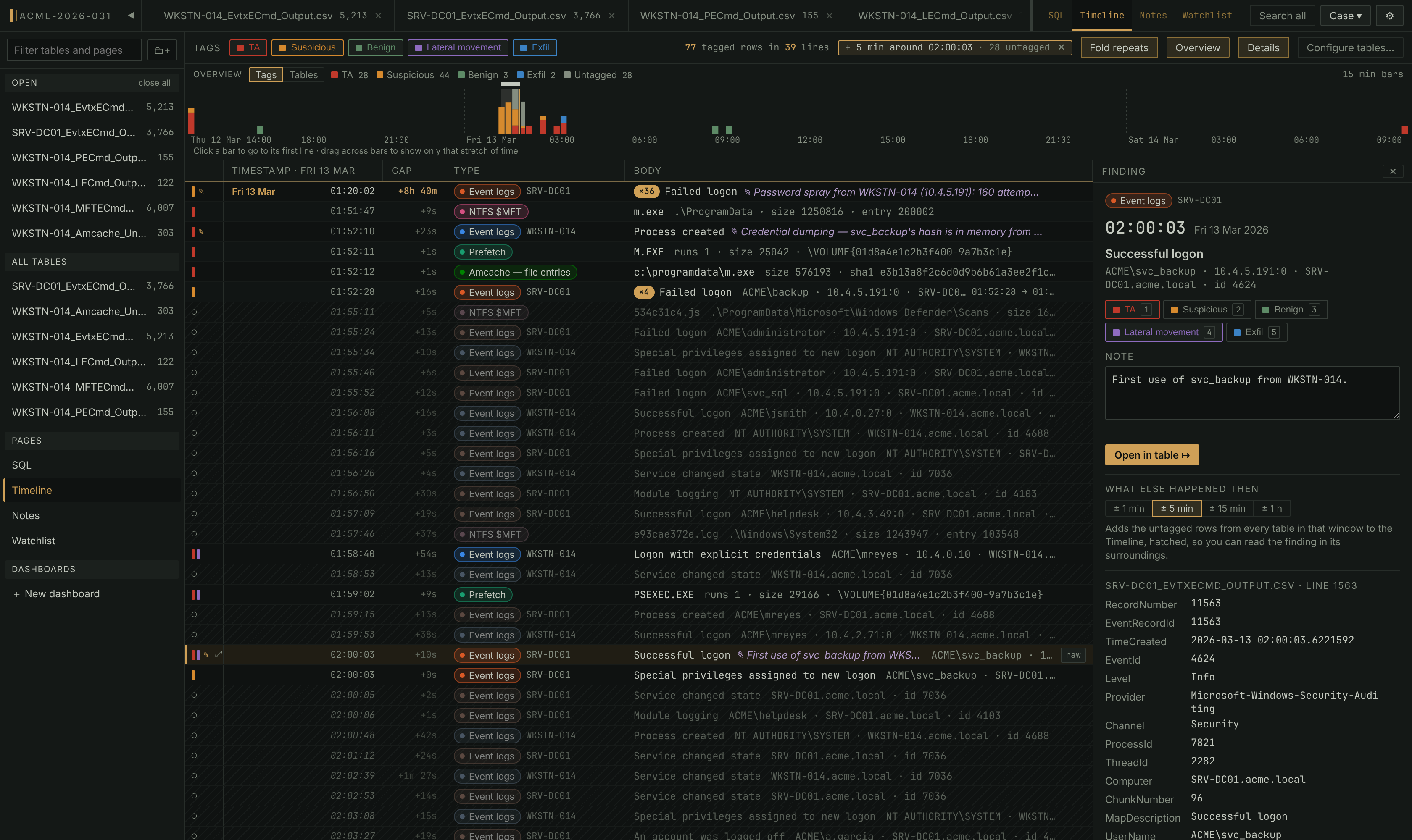
Open the Timeline tab (top right, beside SQL and Notes). It lists every tagged row in the case, from every table, oldest first; tag a row anywhere and it is here. The header says how many tagged rows there are, and with Fold repeats on, how many lines they take (77 tagged rows in 39 lines). It is rebuilt each time you open the tab, so it always reflects the tags as they are now.
Each line has five columns:
- The gutter, as on the grid — a stripe per tag on the row in the tag's colour (hover for the tag's name),
✎when the row has a note (hover to read it), and⤢on the line under the mouse to open the row in its table. - Timestamp — the row's time of day. The first line of each day also names the day (Fri 13 Mar), over a rule across the list, so the day is read once rather than on every line. Hover for the full timestamp, always written
YYYY-MM-DD HH:MM:SSwhatever display format Settings uses, so tables with different date formats sort together. A derived datetime column is used as it is, keeping any fractions of a second. Rows with no usable timestamp come last and show—. The column's heading names the day of the line at the top of the list (Timestamp · Fri 13 Mar). - Gap — how long after the line above this one happened:
+40s,+2m 17s,+2h 31m,+3d 4h. Half an hour or more is in bold, with a dashed rule over the line, so the quiet stretches between bursts of activity stand out. After a folded run it is counted from the run's last row. - Type — a pill naming the kind of table, in a colour of its own for each table: the type you set (see Choosing the timestamp, type and body), else the header set's nickname without the tool's name (Event logs for EvtxECmd output), else the table's name. When two tables are of the same kind, what tells their names apart follows the pill —
WKSTN-014andSRV-DC01forWKSTN-014_EvtxECmd_Output.csvandSRV-DC01_EvtxECmd_Output.csv. Hover the pill for the file name. - Body — a one-line summary of the row when Winnow knows the artefact, otherwise the whole row with its columns joined by
|. Hover it for the whole row. A row's note is written into its line, in italics after what happened (✎ Patient zero: the invoice 'PDF' is a LNK…). A table with more than 495 columns shows only its first 495 in the Body, and the Timeline header says which table; pick body columns under Configure tables… to choose which ones.
Click a line to select it and read it in the details pane beside the list. The grid's keys move the selection — ↓/j and ↑/k a line, Page Down/Page Up a screen, g and G the first and last line — and a key you rebind in Settings moves the Timeline too. Esc lets go of it.
Double-click a line, press Enter on the selected one, or click its ⤢ to open its table at that row on the grid page. A closed table is opened for you and gets its tab back. When you come back to the Timeline it opens on the line you had selected, even though it is rebuilt; if that line has left the Timeline (its tag was taken off, say), it opens where the line was in time.
The overview
The Overview strip above the list shows the Timeline's lines over time: how they are spread across the case, and where the lines on screen sit in it. Overview in the header hides or shows it, and Winnow remembers which.
- Bars. Each bar is a stretch of time, as wide as fits the whole Timeline across the strip; the width is on the right (15 min bars). Dashed lines mark midnight when the bars are shorter than a day. A bar's height grows with the square root of its lines, so a burst of a few hundred failed logons does not flatten single findings to nothing. Hover a bar for its time, its count and what it is made of.
- Tags colours each bar by the first tag on each line (the first in the tag order, as the grid's histogram does), and the legend counts the lines under each tag. A line with two tags is counted once.
- Tables colours each bar by table, in the colour of its Type pill, and gives each table a chip with its count. Click a chip to take that table off the Timeline and again to put it back; while one is off, the header says so (5 of 6 tables).
- Where you are. The shaded band, and the bar along the top of the strip, cover the lines on screen. The selected line is marked by a line through the bars.
- Click a bar to go to its first line and select it. A click where there are no bars goes on to the next one.
- Drag across bars to show only that stretch of time. The Timeline is rebuilt for it, the strip redraws with finer bars, and a chip names the stretch (Fri 13 Mar 01:30 → 06:15); click its ✕ for the whole Timeline again. Lines with no timestamp are left out while a stretch is set. Otherwise they are on no bar, and the strip counts them on the right (3 with no time).
Tables you switch off and the stretch you drag stay while the case is open; opening another case starts with the whole Timeline again.
The details pane
The pane to the right of the list shows the selected line in full, so you can read a finding without leaving the Timeline. Details in the header hides or shows it, and Winnow remembers which; so does the ✕ in its corner. Under a narrow window it sits below the list instead.
From the top down:
- The line: its Type pill, its time in large type with the day and year beside it, and the summary.
- Tags: a chip for each tag in the case, pressed when the row carries it. Click a chip, or press the tag's key (
1–9), to put that tag on the row or take it off. The Timeline is rebuilt straight away, so a row you untag leaves it unless another of its tags is still switched on.Ctrl+Zundoes it, as it does on the grid. - Note: the row's note, which you can edit here (Why does this row matter?). It saves as you type (Saving…, then Saved), and the line's
✎follows. - Open in table ↦: opens the row in its table on the grid page, the same as double-clicking the line.
- What else happened then: see below.
- Every column of the row, with its table's name and line number above them. JSON and XML values are laid out as in the grid's detail pane, and the
⧉beside a value copies it. Values are shown as the table stores them, without the display formats you set for the open table.
What else happened then
A tagged row is rarely the whole story. The rows around it in time, in every table, usually hold the rest, and nobody has tagged them yet. The buttons under What else happened then add them to the Timeline: ± 1 min, ± 5 min, ± 15 min or ± 1 h either side of the selected line.
- The untagged rows in that window, from every table in the case, join the Timeline in time order between the findings. They are hatched and faded, with
○in the gutter, and the pane calls one an Untagged row when you select it. - A chip in the header names the window and counts what it added (± 5 min around 02:00:03 · 28 untagged). Its ✕, or pressing the same button again, takes them off. The count of tagged rows beside it does not include them.
- The overview counts them as Untagged, in grey on top of each bar.
- Tag one and it becomes a finding: it stays on the Timeline when the window is closed.
- Tables you switch off in the overview's Tables view add nothing, and a stretch you drag still applies. A row with only a tag you have switched off counts as untagged here; the pane calls it Around a finding.
The window lasts until you close it or open another case. It goes by each table's timestamp column as set under Configure tables…, the same one the Timeline sorts by; a table with no timestamp column adds nothing.
Narrowing by tag
The chips beside Tags in the header choose which tags are on the Timeline. Every tag starts switched on; click a chip to take that tag's rows off, and again to put them back. A row with several tags stays while any of its tags is on.
A tag created while the case is open starts switched on as well. A tag you switch off stays off until you click its chip again; reopening the case switches every tag back on.
Fold repeats
A password spray is one fact, but it is hundreds of lines. Fold repeats in the header puts each run of three or more lines in a row that come from one table, say the same thing (the same lead in their summary) and carry the same first tag on one line:
- The line starts with how many rows it holds (
×36) and ends with the first and last times and how long the run went on (01:52:28 → 01:55:06 · over 2m 38s). Its time, tags and note are its first row's, and the details pane says so. - Click
×36to show each row on a line of its own. The run's first line then says fold; click it to put the run back on one line. - A row with a note always starts a line of its own, so a note is never hidden inside a fold. A row from another table, with another lead or another first tag, or an untagged row from What else happened then, ends the run. A table with no summary, or whose body columns you picked under Configure tables…, never folds.
- The header counts both rows and lines. The overview still counts every row at its own time, so folding does not move a bar, and a click on a bar inside a run goes to the run's line. A selected line that folds away leaves the run's line selected, and coming back from a table to a row inside a run lands on the run's line too.
- Tagging a folded line, from the details pane or with a tag key, tags its first row only. Open the run to tag the others.
Fold repeats is off until you switch it on, because every line on the Timeline is a row someone tagged as a finding, and Winnow remembers your choice. Runs you open stay open until you switch it off or open another case.
Summary lines
For the artefact shapes Winnow knows, the Body reads as a lead saying what happened and a few details identifying who and where:
Failed logon svc_backup · 10.0.0.5 · WKSTN-4471 · id 4625
The lead is the first of the shape's lead columns that has something in it on that row. The details drop blanks, anything that repeats the lead, and the column already shown as the timestamp; some carry a word in front (id 4625, size 1024). Leads are cut at 100 characters and each detail at 120. Point at a line (or select it) and press raw at its right end to see the whole row instead, and summary to go back; a line showing its whole row keeps its summary button in view.
A table gets a summary when it contains every column of one of the shapes below (in any order, ignoring case; derived columns don't count). When several shapes fit, the one with the most columns wins.
| Shape | Lead (first non-empty) | Details |
|---|---|---|
| Event logs (EvtxECmd) | MapDescription, Provider | UserName, RemoteHost, Computer, EventId (id) |
| Amcache — file entries | FullPath, Name | ProductName, Version (version), Size (size), SHA1 (sha1) |
| Amcache — device containers | FriendlyName, ModelName, KeyName | Manufacturer, ModelNumber, PrimaryCategory |
| Amcache — device PnPs | BusReportedDescription, Description, Model, KeyName | Manufacturer, Class, DriverName, HWID |
| Amcache — driver binaries | DriverName, KeyName | DriverCompany, Product, DriverVersion (version), Service |
| Amcache — driver packages | Directory, KeyName | Provider, Class, Version (version), Inf |
| Amcache — program entries | Name, ProgramId | Publisher, Version (version), RootDirPath, Source (source) |
| Amcache — shortcuts | LnkName, KeyName | KeyName |
| Shimcache (AppCompatCache) | Path | Executed (executed), SourceFile |
| Prefetch (PECmd) | ExecutableName, SourceFilename | RunCount (runs), Size (size), Volume0Name |
| Prefetch timeline (PECmd) | ExecutableName | — |
| Recycle Bin (RBCmd) | FileName | FileSize (size), FileType, SourceName |
| Windows Timeline — activity (WxTCmd) | DisplayText, Executable | Executable, ActivityType, Duration (duration), DevicePlatform |
| Windows Timeline — operations (WxTCmd) | DisplayText, Description, Executable | Executable, ActivityType, OperationType, DevicePlatform |
| Windows Timeline — package IDs (WxTCmd) | Name | Platform, AdditionalInformation |
| Jump lists — automatic (JLECmd) | Path, AppIdDescription | AppIdDescription, Hostname, InteractionCount (interactions), Arguments |
| Jump lists — custom (JLECmd) | EntryName, LocalPath, TargetIDAbsolutePath | AppIdDescription, LocalPath, Arguments, MachineID |
| LNK files (LECmd) | LocalPath, NetworkPath, TargetIDAbsolutePath, SourceFile | Arguments, WorkingDirectory, MachineID, FileSize (size) |
| Shellbags (SBECmd) | AbsolutePath, Value, BagPath | ShellType, BagPath, Slot (slot) |
| NTFS $Boot (MFTECmd) | SourceFile | VolumeSerialNumber (serial), ClusterSize (cluster), TotalSectors (sectors) |
| NTFS $MFT (MFTECmd) | FileName | ParentPath, FileSize (size), EntryNumber (entry) |
| USN journal $J (MFTECmd) | UpdateReasons | Name, ParentPath, EntryNumber (entry) |
| NTFS $SDS (MFTECmd) | OwnerSid | GroupSid (group), Id (id), Control (control) |
| Registry (RECmd batch) | Description, ValueName, KeyPath | KeyPath, ValueName, ValueData |
| SRUM — app resource use (SrumECmd) | ExeInfo | UserName, ExeInfoDescription, Sid |
| SRUM — network usage (SrumECmd) | ExeInfo | UserName, ProfileName, BytesSent (sent), BytesReceived (received) |
| ESXi / Linux host logs | Message | Component, User, SourceIP (from), Log |
Choosing the timestamp, type and body
By default each table is placed on the Timeline by its first datetime column — a column Winnow recognised as dates when it imported the file, or after those, a derived datetime column. A table with no datetime column of its own has its rows at the end with —; give it one with a derived datetime column (a Unix epoch or FILETIME column, say) and the Timeline uses it from then on.
To change this, press Configure tables… in the Timeline header. The dialog, Configure timeline tables, works per header set — a table's own set of columns — because that is what a setting is saved for: it is kept on this machine and reused by every table with the same columns, in this case and in later cases. Configure EvtxECmd output once and every future Security log lands the same way.
Header sets in this case, on the left, has one entry per header set. It is named by the type you gave it, else by the header set's nickname (Winnow ships names for the tools it knows, such as Event logs (EvtxECmd)), else by its first table, and lists the tables it covers — two EvtxECmd exports are one entry, and a setting saved for it applies to both. Each entry is marked saved when it has a saved setting or default when it reads the way Winnow does by default, and unsaved while it holds changes you haven't saved. Merged tables are not listed; their rows appear under their member tables. A table whose import failed or is still running is not listed either.
The right side sets the selected header set:
| Field | What it sets |
|---|---|
| Type | The pill on each line. Blank means the header set's nickname without the tool's name, else each table's own name |
| Timestamp column | The default, which names the column it falls back to — First datetime column (TimeCreated), say, or Each table's first datetime column when the tables differ — or any datetime column of the tables, derived ones included. A column only some of the tables have says so (only on …); the others keep their first datetime column |
| Body columns | Click columns to put them in the Body, in the order you click them; each picked column shows its place. Click one again to take it out, or Clear to pick none. None picked means the default: the summary Winnow ships for that kind of table, or for one it doesn't know, every column joined with |. The line under the columns says which applies. Picking columns replaces the summary with exactly the columns you picked |
Preview shows how rows of one of these tables will read on the Timeline — timestamp, type and body, exactly as the Timeline draws them — and changes as you edit the fields. It shows the table's tagged rows first, and its first rows when it has fewer than three tagged (untagged rows have no tag stripe; they are not on the Timeline until tagged). When the header set covers several tables, Rows from picks which one to preview.
Save saves the header set shown; it is greyed out until something has changed. Your changes to other header sets are kept while the dialog is open — switching between entries doesn't lose them — and the line beside Save names any that are not saved yet (Not saved yet: …). Closing the dialog drops changes that were not saved. Back to default (shown when the header set has a saved setting) removes it, after asking, for every table with these columns, in this case and others.
Three more things to know:
- Saving redraws the Timeline behind the dialog, so it shows the new setting when you close the dialog.
- A configuration is matched on the file's own columns, so adding a derived column to a table doesn't stop its configuration applying, and a derived datetime column can be the table's Timestamp column.
- The same configuration decides the time and text of each row in the Watchlist's Latest hits list.
Search all
Search all counts where terms appear across the tables of the case, without changing any table's filters. Open it with Search all at the top right or the s key; the dialog is titled Search tables. A search runs in the background, so you can close the dialog and carry on working.
Choosing what to search
The row at the top of the dialog sets the scope:
| Button | Searches |
|---|---|
| Every table | Every table in the case, open or closed |
| This table | The table open in the grid — all of its rows, not just the ones the current filters leave. The default when a table is open |
| Choose… | The tables you tick in the row of table chips below it |
The chips under the buttons show which tables are in scope. Clicking a chip switches to Choose… with that table added or taken out.
Scoping to a merged table searches its member tables, where its rows live. The results name the members, and the dialog says so: Logons is a merged table: its 3 member tables were searched, and the results name them.
Entering terms
Paste a list (the default) takes one term per line, and a row matches if it contains any of them — the shape of an IOC list of hashes, hostnames or IPs. Import terms from file… reads a .txt, .csv, .list or .ioc file into the list, one term per line, skipping blank lines, lines starting with # and duplicates.
Advanced (AND / OR / NOT) builds a query from term chips instead, the same way the grid's Advanced search does (see Filtering and searching).
Nothing runs until you press Search or Ctrl+Enter (⌘⏎) in the list. Matching is a plain substring match over the columns the file came with — derived columns are not searched — and ignores case for A–Z, like the grid's Contains search. Terms are not regular expressions.
Reading the results
Each table with a match gets a line with its match count and an Open ↦ button. In Paste a list mode, each term that matched that table gets its own indented line with its own count and Open ↦, so you can see which indicators hit where. Tables and terms with no matches are left out. One row can match several terms, so the term counts need not add up to the table's.
| Limit | What you see |
|---|---|
| A count reaches 1,000 | 1,000+ matches; open the table for the exact number |
| More than 250 pasted terms | Table totals only, no per-term lines |
| Advanced mode | Table totals only |
A table that could not be searched is named at the top with the reason, rather than counted as no match.
Open ↦ opens that table (opening it if it was closed) and puts the terms into its Advanced search — just that term from a term line, every term from a table line. Because the count covered the whole table, it first clears that table's column filters, filter builder, tag filter and the timeframe, and a toast names what it cleared.
While a search runs
With the dialog closed, the Search all button shows progress (Search all… 3/12, or Searching… 1/1 for a narrower scope). When it finishes, a toast says how many tables matched and the button reads Search all (N) (Search (N) for a narrower scope) until you reopen it. Stop ends a search; tables already counted keep their results. Only one search runs at a time, so starting another while one is running asks first (Stop it and search).
Adding the terms to the watchlist
Add to watchlist adds the current terms (except any marked NOT) to the watchlist as type other with no auto-tag, skipping values already on it, and starts a scan for the new ones. That scan reuses what this search already found, so tables the search covered are not read again.
The Watchlist
The Watchlist is the case's standing list of indicators: hashes, IPs, domains, file names, any string. It is stored in the case file. Each indicator is checked against every table, new imports are checked as soon as they land, and an indicator can tag the rows it matches. Open it with the Watchlist tab.
Adding indicators
- One at a time: type the value in Add an indicator — hash, IP, domain, filename…, pick a type (other, hash, ip, domain or filename) and optionally a tag under no auto-tag, then press Add. A value already on the list is refused.
- From a file: Import… reads a
.txt,.csv,.iocor.listfile. The Import indicators dialog shows how many it found and the first few, and asks for a Type and an Auto-tag for the batch. A line of the formvalue,kind(for example10.1.2.3,ip) carries its own type. Awatchlist.csvsaved by Export… is recognised by its header row: each indicator keeps the type and note it was exported with, and Type only fills in one that has none. Blank lines, lines starting with#and values already on the list are skipped. - From another case: From a case… lists the other cases on this machine's home screen that have indicators. Import copies them in, skipping duplicates; types and notes come across, auto-tags do not (they name the other case's tags).
- From Search all: Add to watchlist in the Search all dialog (above).
- From a profile: a profile can bring a starter watchlist with it (see Profiles).
The type sets the label and colour on the row (HASH, IP, DOMAIN, FILE, IOC); it does not change how the indicator matches. There is no editing an indicator: to change its type or auto-tag, remove it with ✕ and add it again.
How matching works
An indicator matches a row when its value appears anywhere in the row's own columns, ignoring case for A–Z — the same match Search all uses. It is a substring match: evil.com also matches notevil.com. Derived columns are not checked.
Every table is scanned except merged tables, whose rows are scanned in their member tables, and a table that is still importing, which is scanned when its import finishes. A table saved from a view is not scanned when it is created; the next Scan all covers it.
Scanning
Scans start by themselves when you add or import indicators (for those indicators) and when an import finishes (every indicator against the new tables). Scan all re-reads every table for every indicator. A scan runs in the background with a Watchlist scan row in the jobs panel showing progress and a Cancel button; closing that row with ✕ cancels the scan too. Only one scan runs at a time; starting another takes over whatever the running one had left. Each scan replaces an indicator's hits for the tables it read.
Auto-tagging
An indicator with an auto-tag puts that tag on every row it matches, each time it is scanned. Three consequences:
- Auto-tags are not on the
Ctrl+Zhistory. - Taking the tag off a matched row lasts only until the next scan, which puts it back. To stop it, remove the indicator; the tags it already applied stay on the rows.
- Deleting the tag in the tag editor turns that indicator's auto-tag off.
If the grid is showing a table the scan tagged, it repaints with the new tags when the scan finishes.
Reading the list
Each indicator shows its type, its value, any note it arrived with, and a count:
| Count | Meaning |
|---|---|
| A number | Rows it matched |
… |
A scan for it is running |
not scanned |
No scan has read it against any table yet — this is not "not present" |
clean |
Every table has been scanned and nothing matched |
3/12 tables |
No hits in the tables scanned so far; the rest have not been read for it |
The summary line reads 4 indicators · 3 with hits · 1,240 hits. When some rows matched more than one indicator it says so: 1,102 rows flagged · 1,240 hits counted across indicators — the row count is the number of findings.
Two indicators that flag exactly the same rows, or where one's rows are all inside the other's, get a ⧉ chip (same rows as …, all its rows are also …'s, covers every row of …). Click it to open Overlapping indicators and keep one with Keep "…". The other is removed, and its auto-tag moves across if the one you keep has none. Winnow refuses a merge that would lose rows only the removed indicator found.
Latest hits and each indicator's hits
The page opens on Latest hits: the newest 60 flagged rows across every indicator, one line per row, newest first. Each line names the indicators that matched it (click a name to show only that indicator's hits), the table, the row's text and its time — the time and text come from the Timeline configuration for that table. Rows from a table with no datetime column come last.
Click an indicator in the list for Hits for "value": its hits grouped by table, each table with its exact count and folded or unfolded by clicking its heading. Each hit shows its line number (row 400), the column the value was found in with that cell, and the row on one line. Up to 200 hits per table are listed; past that, …and N more — open the table opens the table at its first hit. ← all indicators, or clicking the selected indicator again, goes back to Latest hits.
Click any hit, in either view, to open its table at that row on the grid page, opening the table if it was closed.
New hits
When hits arrive that you have not looked at, the Watchlist tab, and its row in the sidebar's Pages list, carry a count of them (shown as 99+ above 99); the collapsed Pages ▾ button shows a dot instead. Opening the Watchlist tab marks them seen. What you have seen is stored in the case file, so the count travels with the case. If a scan finds hits while you are on another page, its row in the jobs panel turns into Watchlist: N hits with a per-table breakdown and an Open watchlist button, and stays until you close it.
Exporting and removing
Export… downloads watchlist.csv with the columns value, kind, note and hits. Import… reads it back: the header row is recognised, and each indicator keeps its type and note (hits is recounted by the next scan, and auto-tags aren't exported). That is one way to copy a watchlist to another case; From a case… there does the same without a file.
✕ on an indicator removes it and its hits. Tags it applied stay on the rows.